Monday morning, video call from the bedroom. The picture freezes. Your colleague sounds like a robot. Two rooms away, in the hallway next to the router, everything works perfectly.
The problem is almost never your internet connection. It's the path from the router to your laptop. Thick walls, a long hallway, a router hidden in a cupboard.
At the electronics shop, the answer is usually: buy a mesh system. Sometimes that's right. Often you need less. And sometimes only a cable will do. Let's go through it step by step, from the free fix to the big solution.
Step 1: Is it really the Wi-Fi?
Before you buy anything, run two tests on your phone. For example on fast.com or speedtest.net. Once right next to the router, once in the problem room.
- Already slow next to the router? Then it's your connection or your contract. No extender will help. Call your provider.
- Fast next to the router, slow in the room? Then it's the Wi-Fi. Read on.
Step 2: Put the router in the right place
The router usually sits where the cable comes out of the wall. On the hallway floor, behind the TV or in a cupboard. For Wi-Fi, that's often the worst spot.
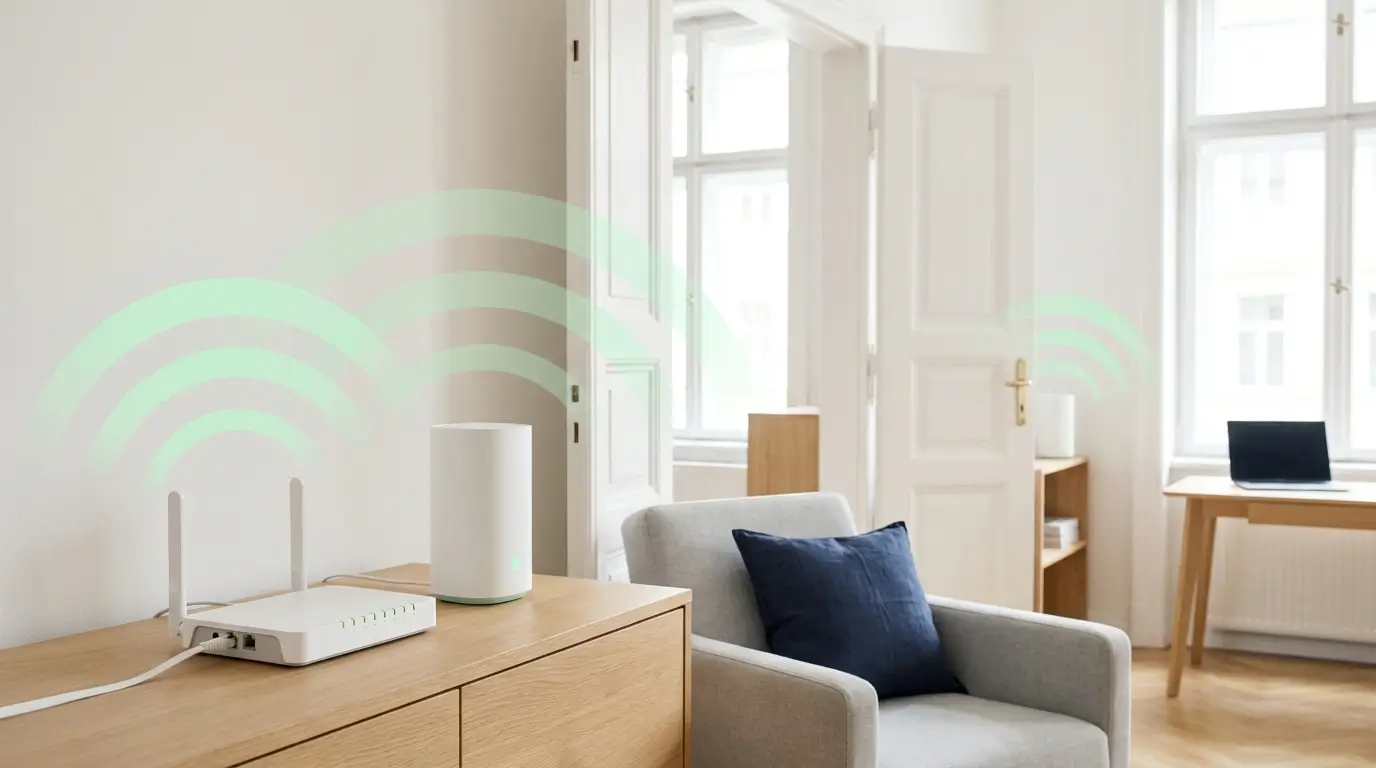
The signal reaches furthest when the router stands somewhere open and high. Give it a chance:
- Out of the cupboard and away from behind the TV.
- Up high, on a shelf for example. Near the floor, furniture swallows a lot of the signal.
- Away from water and metal. Fish tanks, large mirrors and radiators weaken Wi-Fi.
- Update the software. Usually done in the router's app or menu.
Cable too short to move it? A longer network cable from the socket to the router costs very little. And a router in the middle of the flat sometimes makes any extra device unnecessary.
Still not enough? Then you need some extra help. There are four ways to get it.
The four options at a glance
| Option | How it works | Price, roughly | Good for |
|---|---|---|---|
| Wi-Fi extender* | picks up the Wi-Fi and sends it on | from €60 | one weak room in a small flat |
| Mesh system* | several units form one Wi-Fi network together | from €150 | large flats, long hallways, several floors |
| Powerline* | internet runs through the power cables | from €170 | very thick walls, reinforced concrete, basements |
| Network cable* | a cable from the router to the room | from €15 | home office, TV, games console |
Let's look at each one.
Wi-Fi extender: the simple solution
An extender (also called a repeater) is a small device that plugs into a socket. It picks up the router's Wi-Fi and sends it on.
The most common mistake: the extender goes into the room with bad reception. It barely gets a signal there itself. And an extender can only pass on what it receives.
The right spot is halfway. Where the Wi-Fi is still good, but already close to the problem room. Most extenders show you with a light or in the app whether the spot works.
Two weaknesses you should know about:
- Simple extenders receive and send on the same radio channel. Then often only about half the speed reaches the room.
- Some phones stay connected to the weak router even though the extender is closer.
Modern extenders handle both much better. And there's one special case that saves a lot of money.
Look at your router. Does it say FRITZ!Box? These are very common in Germany and Austria. Then get an extender from FRITZ!, for example the FRITZ!Repeater 1200 AX*. Box and extender form a mesh together. So you get the benefits of mesh for the price of an extender.
Got a different router, for example one from your provider? Then a good Wi-Fi 6 extender like the TP-Link RE700X* is a solid choice for a single room.
Mesh: one Wi-Fi for the whole home
A mesh system is made of two or three identical units. You place them around your home, and together they form one single Wi-Fi network with one name. Your phone switches to the nearest unit by itself as you walk around. Like at the office, where you never think about Wi-Fi either.
Mesh is worth it if:
- your flat has four or more rooms
- the rooms are lined up along a long hallway, as in many older buildings
- your home has several floors
- lots of devices are online at once: laptops, TVs, phones, speakers
Placement matters here too. The first unit connects to the router with a cable. Place the others so there are no more than one or two walls between two units. Doorways and hallways are good spots.
For most flats, a set of two is enough, such as the TP-Link Deco X50 two-pack*. It works with any router and takes about fifteen minutes to set up in the app. For large period flats and houses, there's the same set with three units*.
Powerline: when the signal can't get through the wall
Some walls let almost no Wi-Fi through. Reinforced concrete, for example, or very thick walls in old buildings. Getting between floors is often hard too.
Then there's a detour: the power cables. One adapter goes into a socket near the router and connects to it with a cable. A second adapter goes into a socket in the room. The internet travels through the power cables in the wall. The second adapter turns it back into Wi-Fi, often with extra ports for cables.
It sounds almost too simple. And most of the time, it works. But not always:
- Both adapters need to be on the same electricity meter.
- Plug them straight into the wall socket, not into a power strip.
- Old wiring and lots of devices on the circuit slow it down.
A proven set is the devolo Magic 2 WiFi 6 next Starter Kit*. Buy it from a shop that takes returns. Only a test at home shows how well powerline works for you.
The network cable: boring, but unbeatable
For anything that doesn't move, a cable is the best solution. The home office desk, the TV, the games console. A cable doesn't drop out during a video call. It needs no app and no updates.
Many people avoid cables because they think of holes and channels cut into the wall. It doesn't have to be like that:
- A flat network cable fits under doors and disappears behind the skirting board. Good flat network cables* come in white and in many lengths.
- In a cable channel on the wall, you hardly see it. Our article on choosing a TV wall mount shows how that looks neat.
And one trick few people know: run a cable to the far room and plug an extender or mesh unit into it there. That room gets strong Wi-Fi without any detour over the air. The FRITZ!Repeater and the Deco units have a cable port for exactly this.
What suits your home?
| Your home | Our recommendation |
|---|---|
| Up to three rooms, one room is weak | Move the router, then add an extender (a FRITZ! one if you have a FRITZ!Box) |
| Four or more rooms, long hallway | Mesh with two units |
| Old building with thick walls | Mesh with units near doorways, and if that's not enough: powerline |
| Several floors or a house | Mesh with three units, connected by cable where possible |
| Home office with lots of video calls | A network cable to the desk, whatever the home |
Our rule of thumb: cable where you can, wireless where you must.
DIY or call a pro?
You can do almost all of this yourself. Moving the router, plugging in an extender, setting up mesh in the app: each takes less than half an hour. The apps guide you step by step.
Only the cable takes more work. A flat cable along the skirting board is quick. A hole through the wall or a cable inside the wall is a job for a pro. By the way, anyone may lay network cables, not just an electrician. In a rented flat, ask your landlord first.
What you need
Depending on which option suits you:
- Extender: with a FRITZ!Box, the FRITZ!Repeater 1200 AX*; with other routers, for example the TP-Link RE700X*
- Mesh: the TP-Link Deco X50* with two or three units
- Powerline: the devolo Magic 2 WiFi 6 next Starter Kit*
- Cable: a flat network cable in the right length, plus a cable channel if it runs visibly along the wall
Frequently asked questions
How many mesh units do I need?
Two are enough for most flats: one next to the router, one in the middle of the flat. With thick old walls, a long hallway or several floors, go for three.
Can I keep my router if I buy a mesh system?
Yes. The first mesh unit connects to the router with a cable. In the app, you then switch the mesh system to access point mode. It then only handles the Wi-Fi, and the router keeps looking after your internet connection. Turn off the router's own Wi-Fi. That leaves just one Wi-Fi network in your home.
Does powerline work in every flat?
Usually, but not always. Both adapters need to be on the same electricity meter and plugged straight into a wall socket, not a power strip. Old wiring slows it down. Buy from a shop that takes returns and test it at home.
Do I need Wi-Fi 7?
Not for most homes. Wi-Fi 6 and Wi-Fi 7 are generations of the Wi-Fi standard, and 7 is the newest. Wi-Fi 6 is plenty for streaming, video calls and fast internet. Wi-Fi 7 only pays off if your connection is faster than 1 Gbit/s and your devices support Wi-Fi 7 too.
Can I run a network cable in a rented flat?
A cable along the skirting board or in a cable channel is usually fine, as long as you remove it when you move out. For holes through walls or cables inside the wall, ask your landlord first.
In short
- Test first: next to the router and in the problem room. If it's already slow at the router, it's your connection.
- Put the router somewhere open and high. It costs nothing and often helps on its own.
- Extender halfway, not in the dead zone. With a FRITZ!Box, use a FRITZ!Repeater.
- Mesh for large flats, long hallways and several floors.
- Powerline when no signal gets through the wall. A cable for everything that doesn't move.